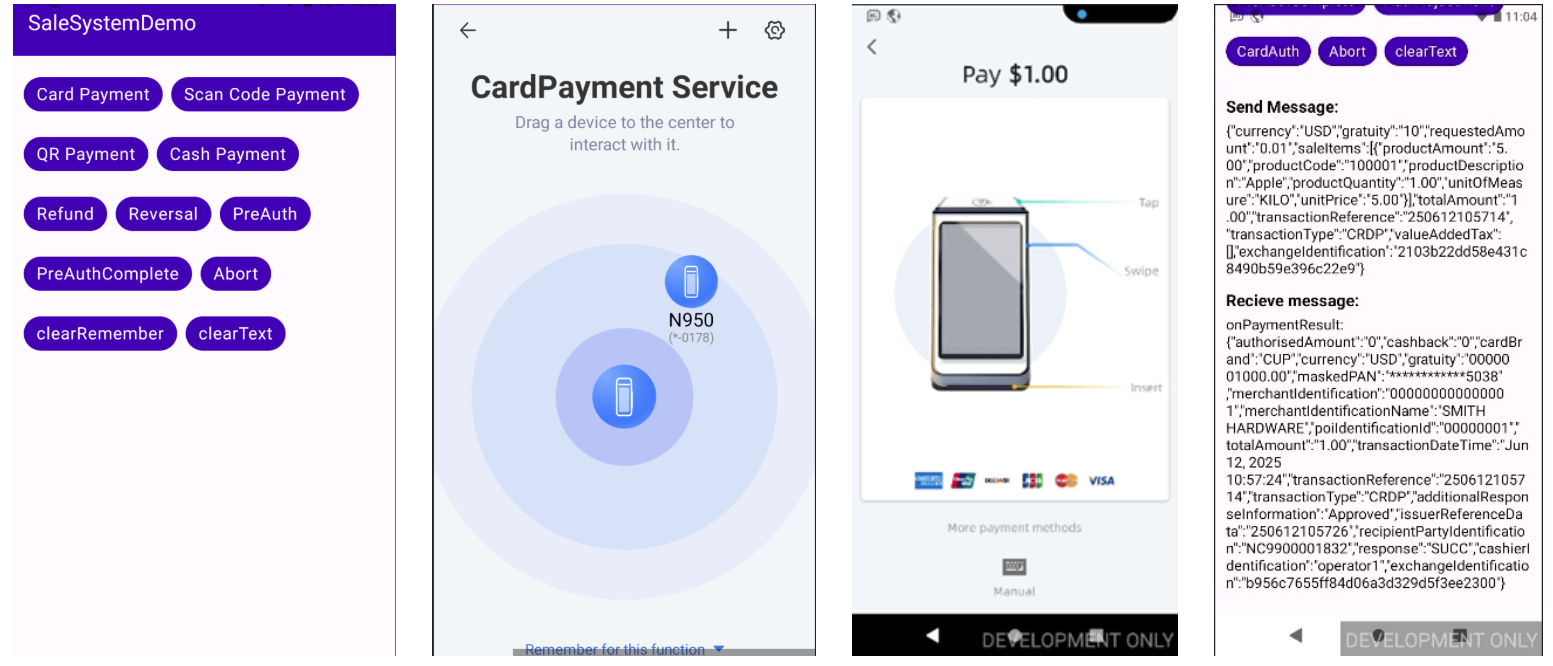
Experience the integration with PayExplorer Connect SDK using the sample application.
Before starting the integration, we recommend installing the sample application.
This will help you better understand how the terminal integration components work together and demonstrate the interaction logic between PayExplorer Connect, the payment terminal, and the EPOS application.
Name | Download |
|---|---|
The sample application installed on the ECR. | |
ECR Demo | Installation package SaleSystemDemo-Android-V4.7.04.apk |
Applications required for the payment terminal. | |
HiPay | Installation package HIPAY-Android-V2.0.04.apk |
PayExplorer Connect | Installation package PayExplorerConnect-Android-V4.7.04.apk |
Simulated Transaction | Installation package ST-PLATFORM_20010_NPI_AN_2.00.10.apk |
How to Use?
Install the HiPay APK and PayExplorer Connect APK on the payment terminal.
After installation, ensure that the applications have been launched at least once and granted all required permissions for proper operation.
Install the SaleSystemDemo APK on the ECR or any other Android smart terminal.
Taking the local area network communication method as an example, this section explains how to configure PayExplorer Connect:
This completes the initial setup of the PayExplorer Connect application.
You can modify these configuration parameters at any time in the settings within the PayExplorer Connect app.
Next, ensure that the payment terminal and ECR are on the same local area network (LAN).
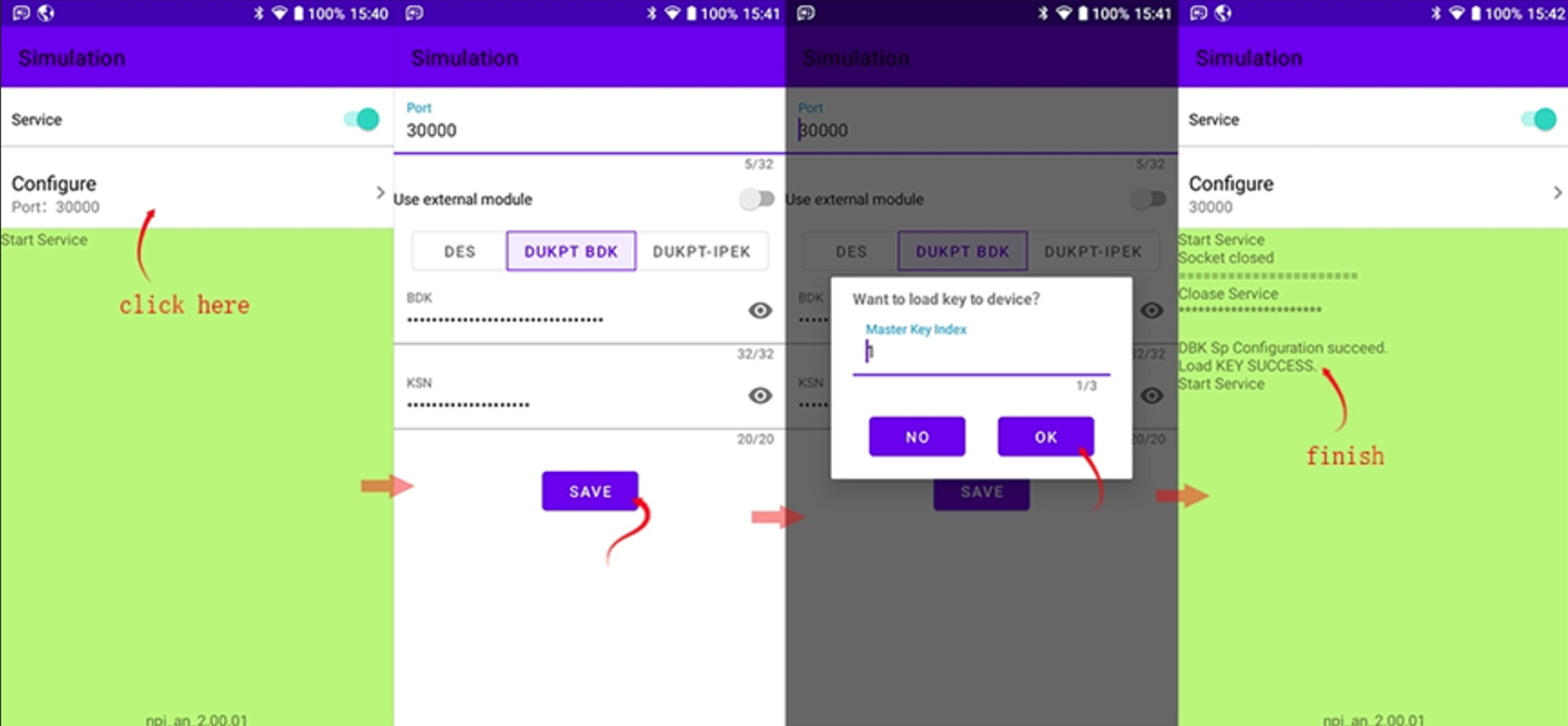
The Simulated Transaction APK is a simulation tool used together with the HiPay APK to simulate a real transaction environment.
Install the ST-PLATFORM APK on the payment processing terminal, and complete the required configuration after installation.
Refer to the following images for the application configuration steps:
Initiate Transaction
The detailed steps are as follows:
Launch the SaleSystemDemo application
Open the SaleSystemDemo application on the terminal that initiates the transaction.
Select the transaction type
In the SaleSystemDemo application, click on the Card Payment transaction.
Select the payment device
After clicking the Card Payment button, the transaction device selection screen will appear.
On the device discovery screen, select the device/service to be used for payment.
If the default service has already been selected, or if using the local mode (Local) with only one available service, this step is automatically skipped.
Complete the payment
On the payment screen, present your bank card to the selected payment device (swipe, insert, or tap), and follow the prompts (e.g., enter your PIN) to complete the transaction.
Check the transaction status
After the transaction is completed, you can view the response result in the SaleSystemDemo application.